
Sign-up and tenants
The console is the web page where your team manages the IM service: creating apps, managing server credentials and runtime policies, inviting colleagues, checking costs and bills, and viewing IM users, groups, messages and files. This page covers signing up and signing in to the console, keeping your account secure, and creating, verifying and closing tenants.
The console's menu is on the left:
| Menu | Contents |
|---|---|
| Overview | The current app's status, access credentials, plan usage and quick start; see Overview below |
| Workbench | "App management", "Plans" and "Audio/video billing"; see App management, Plans and bills and Audio/video billing |
| Members and permissions | "Members", "Business verification" and "Moderation accounts"; see Members and roles, Business verification and Content moderation settings |
| Billing center | The tenant's account, bills and transactions; see Plans and bills |
| Tenant settings | "Operation log"; see Operation log |
"Business verification", "Moderation accounts" and "Tenant settings" are only visible to owner and admin; for what each role can do, see Members and roles.
At the top left are the app selector and the "Create app" button; see Current app. At the top right are the language selector, notifications and the avatar menu, which has "Account settings" and "Sign out".
Sign up
On the sign-in page, click "Sign up" and fill in:
| Field | Description |
|---|---|
| Email or phone number | Used to sign in and receive verification codes and security notifications. Phone numbers need the country code, such as +8613800000000 |
| Verification code | Click "Send code" and complete the image check; the code goes to the email or phone number above |
| Password | 8 to 128 characters; see Password rules below |
| Your name | Shown in the member list and operation log, up to 128 characters; can be changed later |
| Tenant name | The name of your company or team, up to 128 characters; can be changed later |
Once signed up you're signed in, and a tenant is created with you as its owner. The tenant already has an app named demo, and after signing in you land on its Overview, so you can try things out and integrate right away without creating an app first.
The automatically created demo app
The demo app is exactly like apps you create yourself: it uses the platform's default plan, is created in the tenant's default region, has client sign-up turned off, and already has its first set of server credentials, shown under "Access credentials" on the Overview. It takes one app slot and is billed from the day it was created. If you don't need it, disable or delete it; once deleted, the name demo can't be used again.
Verification codes are 6 digits, valid for 10 minutes, and stop working after 5 wrong tries. Each email or phone number can get one code per 60 seconds and at most 10 a day.
Getting an "already registered" notice instead of a code
If the email or phone number is already registered, the page still says the code was sent, but what you receive is a notice that the address is already registered. Sign in directly, and use "Forgot password" if you don't remember the password.
Password rules
Passwords are 8 to 128 characters, with no required character types and no forced periodic changes, but they can't be:
- A common weak password.
- A repeated chunk of characters, such as
abcabcabc. - A run of increasing or decreasing characters, such as
12345678orabcdefgh. - Something containing the part of your email before
@(when it's 4 characters or more) or the last 8 digits of your phone number.
Sign in
On the sign-in page, enter your email or phone number and password. If two-step verification is on, also enter the 6-digit code from your authenticator, or a recovery code if your phone isn't with you.
- After 3 failed sign-ins on the same account within 15 minutes, you must complete an image check before trying again; after 10 failures on the same account from the same IP within 15 minutes, that IP is temporarily blocked from signing in to the account, so try again later.
- You stay signed in, but must sign in again after 7 days without using the console.
- If you forget your password, click "Forgot password" on the sign-in page, get a code by email or phone, and set a new password. Resetting it signs the account out on every device.
In "Account settings" you can change your name and password, see "Devices" (and sign out any of them) and the "Sign-in history" for the last 180 days. Changing your password signs out your other devices.
Overview
After signing in you land on the "Overview", showing the live status and access details of the current app (the one selected in the app selector at the top). Newly registered tenants show the automatically created demo app; when you switch apps at the top, the Overview switches too. If the tenant has no apps yet, the page asks you to create one at the top.
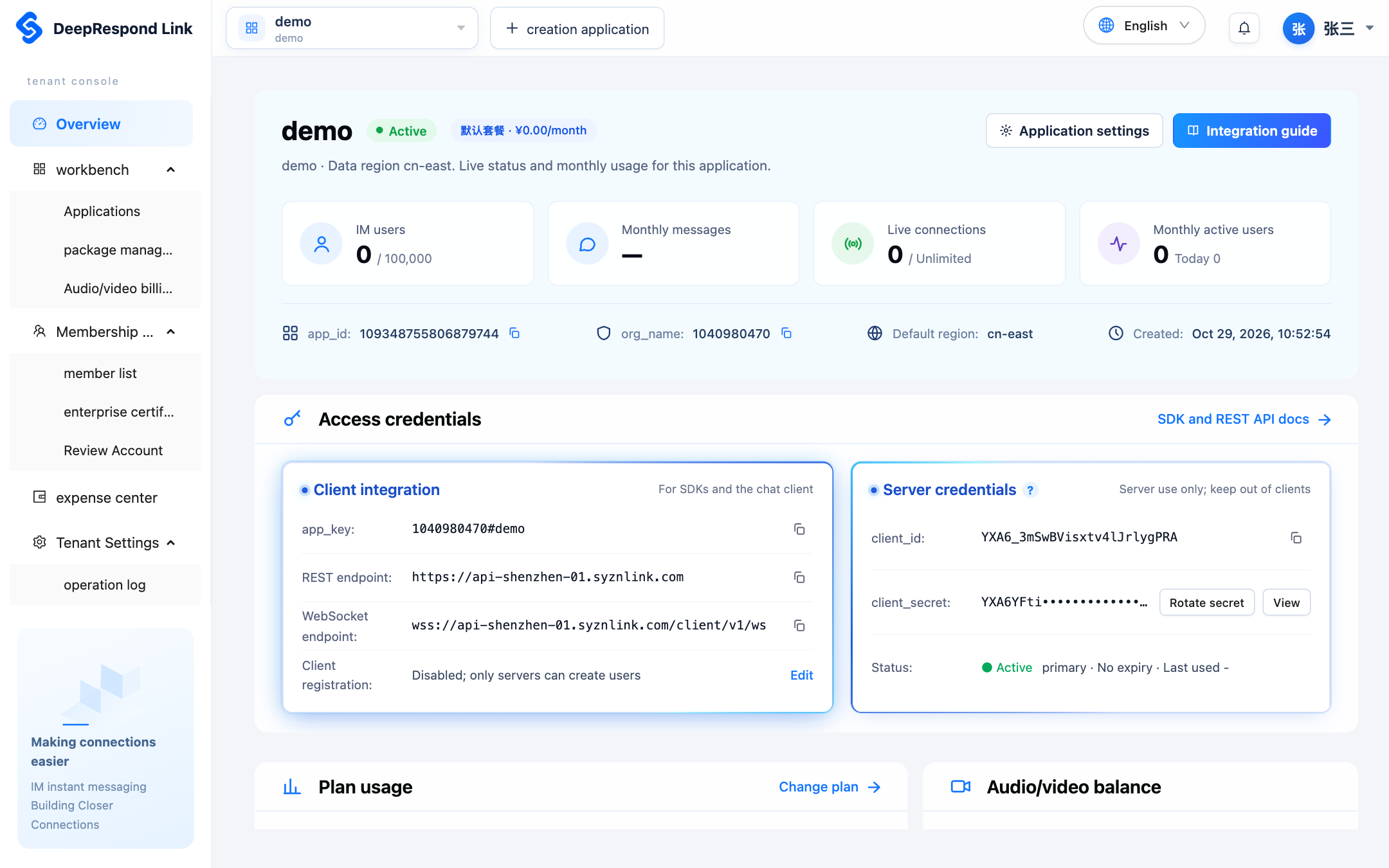
From top to bottom, the page has these parts:
| Part | Contents |
|---|---|
| App info | Display name, status (active, disabled and so on) and the current plan and monthly fee; "App settings" on the right opens the app's settings, and "Integration docs" opens Send your first message |
| Live metrics | IM users (current users / the plan's registered user limit), Messages this month, Current connections (current connections / the plan's concurrent connection limit) and Monthly active users (also showing today's active users); for how they're counted, see User and connection stats |
| App identifiers | app_id, org_name, default region and creation time; app_id and org_name can be copied |
| Access credentials | Everything client and server integration needs; see Access credentials below |
| Plan usage | Usage and limits for registered users, concurrent connections, groups and storage, plus the per-minute message limit; "Change plan" opens "Plans"; see Plans and bills |
| Audio/video balance | The app's remaining standard audio/video minutes, minutes counted this month and the unit price; "Top up" opens "Audio/video billing"; see Audio/video billing |
| Quick start | Three steps to try sending and receiving messages with the console and the chat page; see Quick start below |
"—" in a metric means there's no data yet (such as no message count for this month) or that item failed to load. When a part fails to load, a notice appears at the top of the page and the other parts show as usual.
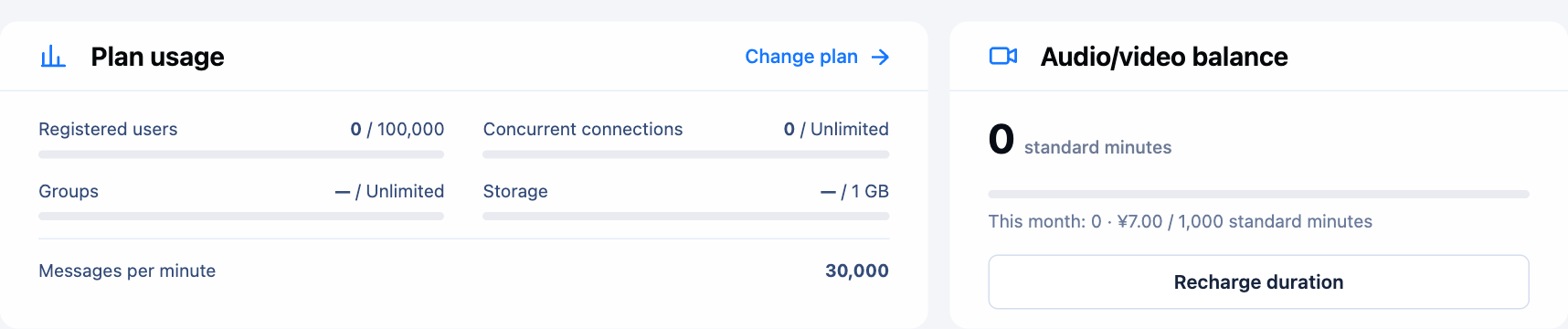
At the bottom of the page are pointers to disabling or deleting the app; those actions are in "App settings"; see Disable and enable and Delete an app.
Access credentials
"Access credentials" has two cards, with a copy button next to each value:
| Card | Item | Description |
|---|---|---|
| Client access | app_key | Used by client SDKs and the chat page to sign in; see AppKey |
| REST endpoint | The address of the server REST API and the client HTTP API, the IM_API in Send your first message | |
| Connection endpoint | The address of the client's persistent connection (WebSocket) | |
| Client sign-up | Whether clients can currently sign up by themselves; owner and admin can click "Change"; see Client sign-up | |
| Server secret | client_id | Used by your server to get an App Token |
client_secret | Only the first few characters are shown. Click "View" and verify your identity again to see the full value; owner and admin can click "Rotate secret" to generate a new one, after which the old secret stops working in 24 hours. See Rotate the secret | |
| Status | The slot of the credential in effect, its expiry and when it was last used |
client_secret belongs on the server only
client_secret can get an App Token that manages the whole app. Keep it only on your server, never in clients, web pages or code repositories.
Quick start
"Quick start" guides you through sending and receiving messages without writing code. The number of finished steps shows on the right, and it can be collapsed:

- Create IM users: open "IM users" in the app details and create two users with passwords. If the app already has users, this step shows as done.
- Open the chat page and sign in: sign in to the chat page with the
app_keyabove and an IM user's username and password; click to see the Web client integration steps. - Message between two windows: sign in as the two users in a normal browser window and a private window, and send each other messages.
To do the same with the server REST API, see Send your first message.
Two-step verification
Two-step verification asks for a code from an authenticator app (such as Google Authenticator, Microsoft Authenticator or 1Password) in addition to your password, so others can't sign in even if your password leaks. We recommend it for every member, and the owner can also require it for everyone.
To turn it on:
- In "Security" under "Account settings", click "Turn on two-step verification" and verify your identity again as prompted.
- Scan the QR code on the page with your authenticator, or enter the key next to it by hand.
- Within 10 minutes, enter the 6-digit number shown in the authenticator and click "Confirm".
- The page shows 10 recovery codes, only this once. Save them, then click "I've saved them".
If you lose your phone, use a recovery code in place of the verification code when signing in or verifying your identity; each recovery code works once. When you're running low, click "Regenerate recovery codes" in "Account settings", which invalidates the old ones. Turning two-step verification off is also done in "Account settings" and needs identity verification.
If you lose both the authenticator and the recovery codes
Contact us to reset two-step verification. Once we've confirmed your identity, we turn off your two-step verification and sign out all your sessions; sign in with your password and turn it on again.
Tenants
A tenant represents one company or team using the service, and apps, members and runtime policies all belong to it. Every tenant has a system-generated 10-digit org_name, which is the first half of the AppKey and appears in server REST API addresses, and can't be changed; the tenant name is only for display and can be changed at any time.
One account can belong to several tenants, with its own role in each.
Tenant info
The tenant's org_name is shown among the app identifiers on the Overview and can be copied; it's also the part of every app's app_key before #. Tenants also have this info and these limits:
| Item | Description |
|---|---|
| Apps | The number of apps is limited; deleted apps don't count, and the demo app created at sign-up does |
| Members | The number of members is limited, including disabled members; pending invitations also take slots |
| Default region | The region new apps are created in |
| Created | When the tenant was created |
The default limits are 10 apps and 20 members; after business verification you can request higher limits.
owner and admin can click "Change" to edit the tenant name and the "default region for new apps". Changing the default region doesn't affect existing apps.
Tenant status
| Status | Description |
|---|---|
| Active | Works normally |
| Suspended | The tenant's service is suspended. While suspended, all its apps stop serving, and the console is view-only. When the platform suspended it, the reason shows at the top of the Overview; when suspended for unpaid bills, "Account" in the Billing center shows "Service suspended due to unpaid bills" and the reason at the top, and service resumes automatically once the debt is paid; see Overdue and unpaid bills |
| Closing | The tenant is in the closure cooling-off period; see Close the tenant |
With unpaid bills, all of a tenant's apps may first become read-only while the tenant status stays "Active", and "Account" in the Billing center shows "All apps are read-only due to unpaid bills" at the top; see Overdue and unpaid bills.
Business verification
Business verification is optional; everything works without it. Once verified, you can request higher limits for apps and members.
owner or admin fills in the following under "Business verification" in the menu and clicks "Submit":
| Field | Requirements |
|---|---|
| Company name | Up to 19 characters; the field shows the current count and limits input length |
| Unified social credit code | 18 digits or capital letters, excluding I, O, S, V and Z |
| Legal representative | Up to 19 characters; the field shows the current count and limits input length |
| Business license | Click "Upload business license" to choose a file: a JPEG or PNG image, or a PDF, up to 10 MB. After uploading, the file name and size show, and you can click "Upload again" to replace it |
| Contact person | Up to 19 characters; the field shows the current count and limits input length |
| Contact phone | Choose the country or region code from the dropdown (mainland China +86 by default), then enter the mobile number without repeating the code; digits only, at most 15 digits including the code |
The business license's format is identified from its content, so files that aren't really JPEG, PNG or PDF (such as ones with only the extension changed) fail to upload. Licenses not submitted for verification within 24 hours of upload are deleted automatically, after which upload again. Each tenant can upload about 20 license files a day at most.
After submitting, the status is "Under review", and it can't be edited during review. The owner and all admins are notified of the result:
- Approved: the details can't be edited any more; contact us if they need changing.
- Rejected: the page shows the reason; fix it and submit again. The previously submitted license stays valid, so you don't need to upload it again if it was fine.
After submitting, the license row on the "Business verification" page shows "View", which opens the file in a new window. Only the tenant's owner and admins and the platform's reviewers can view licenses, and every view is written to the operation log. Submitted licenses are kept until the tenant is closed, and earlier materials are kept after resubmitting so reviewers can compare; licenses don't count toward any app's storage.
You can upload a license and submit business verification even while the tenant is suspended or in the closure cooling-off period.
Close the tenant
Closing permanently deletes all the tenant's apps and data. Only the owner can close it: click "Close tenant" under "Security and closure" on the Overview, confirm, and verify your identity again as prompted.
After the request, the tenant enters a 15-day cooling-off period:
- All apps stop serving immediately: getting an App Token returns
403 tenant_unavailable, all issued App Tokens and client User Tokens stop working, and clients can't sign in. - The console is view-only; nothing can be changed except cancelling the closure and submitting business verification.
- The
ownerand alladmins are notified when the request is made and 3 days before the cooling-off period ends. - During the cooling-off period, the
ownercan click "Cancel closure" at the top of the Overview to restore the tenant. Servers then get new App Tokens; clients can keep going by renewing their tokens, but users whose downtime exceeded the sign-in lifetime (7 days by default) must sign in again.
When the cooling-off period ends, the closure takes effect and can't be undone: the tenant disappears from every member's tenant list, all its apps with their users, groups, messages and files, and the business verification materials are permanently deleted, and the org_name is never given to another tenant.
Check before closing
Closing deletes the data of all apps and can't be undone. If you only want to stop one app, disable it; if you only want to delete one app, delete it. Tenants suspended by the platform can't request closure; contact us.
Language and preferences
Simplified Chinese, Traditional Chinese and English are supported. The page language is decided, in order, by the URL's lang, the choice saved on this device, your account preference, and the browser language. SDK text uses catalogs chosen by the host app and never translates users' messages. For the account language API, request headers, notification templates and SDK examples, see Languages and localization.